 DayPilot
A Scheduler event link connects a particular endpoint of one event to a particular endpoint of another. Choose the link type according to the relationship you want to show: a task that must finish before another starts, two activities that can start together, related completion dates, or a shift handover.
The Scheduler draws the relationship using the event dates supplied by your application. Adding a link does not move events, calculate successor dates or prevent an invalid schedule. If a dependency represents a scheduling rule, your application must validate that rule and update the dates.
Choose the Connected Endpoints
The first word in the type names the endpoint of the source event (from); the second names the endpoint of the target event (to). Start and finish refer to event timestamps. They do not refer to the order of rows or the order of objects in the event array.
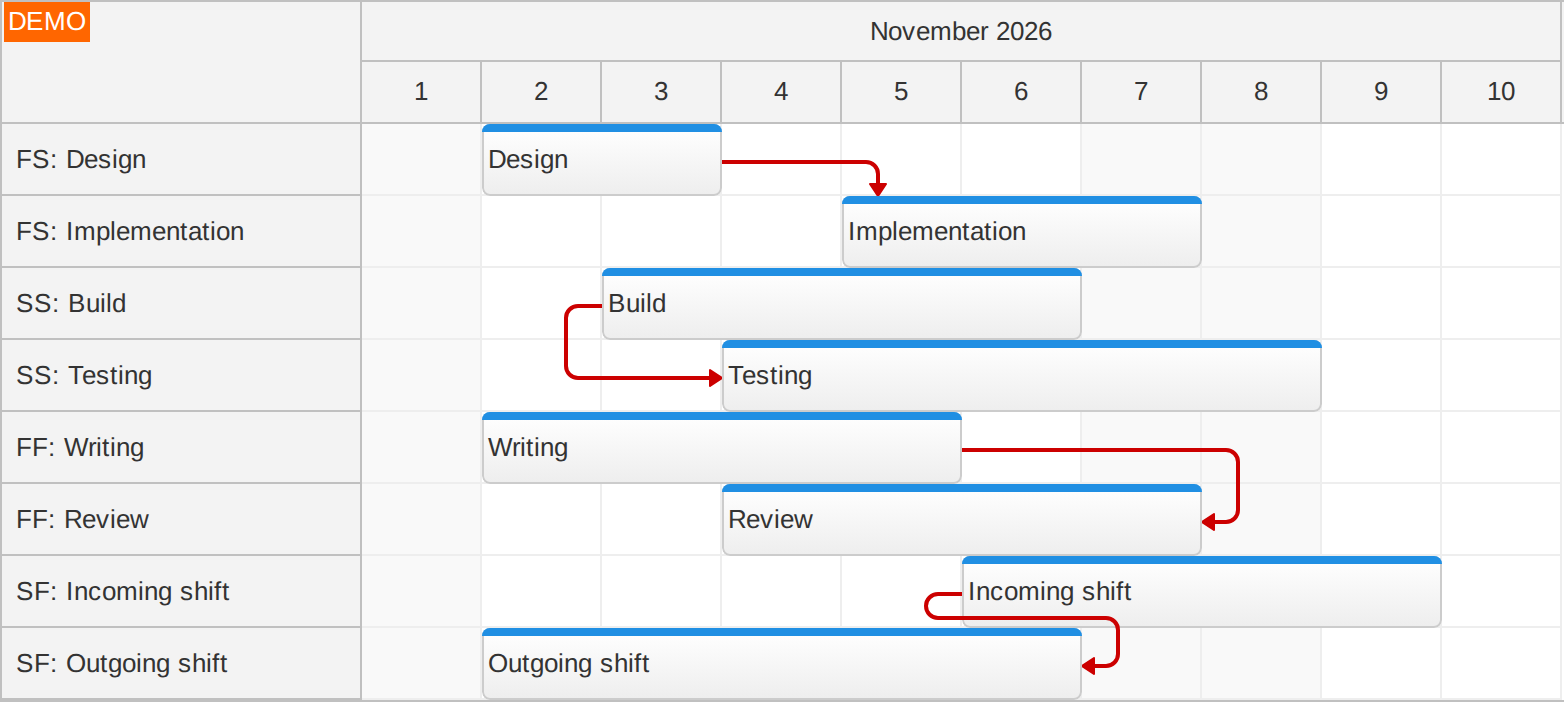
FinishToStart(default): Source finish to target start. Implementation follows design.StartToStart: Source start to target start. Testing can begin once the build work starts.FinishToFinish: Source finish to target finish. Review cannot finish before writing is complete.StartToFinish: Source start to target finish. The outgoing shift continues until the incoming shift starts.
FinishToStart: Sequence Two Tasks
Connect the end of Design to the start of Implementation. This is the usual choice for work that follows a completed task. The example leaves a gap between the tasks; the link type does not require the endpoints to touch. Omitting type selects FinishToStart, but setting it explicitly makes your data easier to read.
StartToStart: Relate the Start of Parallel Work
Connect the start of Build to the start of Testing. This can describe testing that begins after build work starts, while the work continues in parallel. The starts do not have to be equal: the example starts testing one day later. The link does not encode or enforce that delay.
FinishToFinish: Relate Completion Dates
Connect the end of Writing to the end of Review. Review can overlap writing, while its completion depends on the writing being finished. The example gives review two additional days. Start dates and durations remain independent application data.
StartToFinish: Show a Handover
Connect the start of the Incoming shift to the end of the Outgoing shift. This less common relationship is useful when an existing activity must continue until its replacement has started. Here, the source event begins later than the target event: from identifies the source of the relationship, not necessarily the earlier event. The example includes one day of overlap for the handover.
Define Link Data
Store the links in links.list, or pass the links option during initialization. Each from and to value must match an event's id, not its resource ID or display text. Use unique link IDs when you need to find, update or remove links later.
const links = [
  {id: "fs", from: "design", to: "implementation", type: "FinishToStart"},
  {id: "ss", from: "build", to: "testing", type: "StartToStart"},
  {id: "ff", from: "writing", to: "review", type: "FinishToFinish"},
  {id: "sf", from: "incoming", to: "outgoing", type: "StartToFinish"}
];
Load both endpoint events and their resources, and use a timeline that includes their dates. See Link Loading for loading dependencies from a server and replacing the collection after initialization, and Links API for individual changes.
The endpoint choice is independent of line appearance. The examples use right-angled links; see Link Customization for colors, widths and other presentation options.
JavaScript
After loading the DayPilot Pro JavaScript bundle, add a container and initialize the Scheduler. This complete example supplies all eight events and four links. Event end timestamps are exclusive: an end of 2026-11-04 is midnight at the start of November 4.
<div id="dp"></div>const dp = new DayPilot.Scheduler("dp", {
startDate: "2026-11-01",
days: 10,
scale: "Day",
timeHeaders: [
{groupBy: "Month"},
{groupBy: "Day", format: "d"}
],
resources: [
{id: "fs-a", name: "FS: Design"},
{id: "fs-b", name: "FS: Implementation"},
{id: "ss-a", name: "SS: Build"},
{id: "ss-b", name: "SS: Testing"},
{id: "ff-a", name: "FF: Writing"},
{id: "ff-b", name: "FF: Review"},
{id: "sf-a", name: "SF: Incoming shift"},
{id: "sf-b", name: "SF: Outgoing shift"}
],
events: [
{id: "design", text: "Design", resource: "fs-a", start: "2026-11-02", end: "2026-11-04"},
{id: "implementation", text: "Implementation", resource: "fs-b", start: "2026-11-05", end: "2026-11-08"},
{id: "build", text: "Build", resource: "ss-a", start: "2026-11-03", end: "2026-11-07"},
{id: "testing", text: "Testing", resource: "ss-b", start: "2026-11-04", end: "2026-11-09"},
{id: "writing", text: "Writing", resource: "ff-a", start: "2026-11-02", end: "2026-11-06"},
{id: "review", text: "Review", resource: "ff-b", start: "2026-11-04", end: "2026-11-08"},
{id: "incoming", text: "Incoming shift", resource: "sf-a", start: "2026-11-06", end: "2026-11-10"},
{id: "outgoing", text: "Outgoing shift", resource: "sf-b", start: "2026-11-02", end: "2026-11-07"}
],
links: [
{id: "fs", from: "design", to: "implementation", type: "FinishToStart"},
{id: "ss", from: "build", to: "testing", type: "StartToStart"},
{id: "ff", from: "writing", to: "review", type: "FinishToFinish"},
{id: "sf", from: "incoming", to: "outgoing", type: "StartToFinish"}
],
linkShape: "RightAngled",
rowHeaderWidth: 180,
cellWidth: 60,
eventHeight: 36
});
dp.init();Try changing one link's type while keeping its from, to and event dates unchanged. Different endpoints will be connected; the event bars will stay in place. The existing Event Links demo shows dependency links in a running Scheduler.
API: links.list, linkShape, rowHeaderWidth.
The framework examples use DayPilot Pro. For installation, see the Angular, React or Vue Scheduler guide.
Angular
Put the event, resource and link collections in a typed DayPilot.SchedulerConfig and bind it through [config].
import {Component} from "@angular/core";
import {DayPilot, DayPilotModule} from "daypilot-pro-angular";

@Component({
  selector: "app-scheduler-example",
  standalone: true,
  imports: [DayPilotModule],
  template: `

    <daypilot-scheduler [config]="config"></daypilot-scheduler>
  `
})
export class SchedulerExampleComponent {
  config: DayPilot.SchedulerConfig = {
    startDate: "2026-11-01",
    days: 10,
    scale: "Day",
    timeHeaders: [
      {groupBy: "Month"},
      {groupBy: "Day", format: "d"}
    ],
    resources: [
      {id: "fs-a", name: "FS: Design"},
      {id: "fs-b", name: "FS: Implementation"},
      {id: "ss-a", name: "SS: Build"},
      {id: "ss-b", name: "SS: Testing"},
      {id: "ff-a", name: "FF: Writing"},
      {id: "ff-b", name: "FF: Review"},
      {id: "sf-a", name: "SF: Incoming shift"},
      {id: "sf-b", name: "SF: Outgoing shift"}
    ],
    events: [
      {id: "design", text: "Design", resource: "fs-a", start: "2026-11-02", end: "2026-11-04"},
      {id: "implementation", text: "Implementation", resource: "fs-b", start: "2026-11-05", end: "2026-11-08"},
      {id: "build", text: "Build", resource: "ss-a", start: "2026-11-03", end: "2026-11-07"},
      {id: "testing", text: "Testing", resource: "ss-b", start: "2026-11-04", end: "2026-11-09"},
      {id: "writing", text: "Writing", resource: "ff-a", start: "2026-11-02", end: "2026-11-06"},
      {id: "review", text: "Review", resource: "ff-b", start: "2026-11-04", end: "2026-11-08"},
      {id: "incoming", text: "Incoming shift", resource: "sf-a", start: "2026-11-06", end: "2026-11-10"},
      {id: "outgoing", text: "Outgoing shift", resource: "sf-b", start: "2026-11-02", end: "2026-11-07"}
    ],
    links: [
      {id: "fs", from: "design", to: "implementation", type: "FinishToStart"},
      {id: "ss", from: "build", to: "testing", type: "StartToStart"},
      {id: "ff", from: "writing", to: "review", type: "FinishToFinish"},
      {id: "sf", from: "incoming", to: "outgoing", type: "StartToFinish"}
    ],
    linkShape: "RightAngled",
    rowHeaderWidth: 180,
    cellWidth: 60,
    eventHeight: 36
  };

}
React
Pass events, resources and links directly to DayPilotScheduler as individual props.
import React from "react";
import {DayPilot, DayPilotScheduler} from "daypilot-pro-react";

export default function SchedulerExample() {

  return <div>

    <DayPilotScheduler
      startDate={"2026-11-01"}
      days={10}
      scale={"Day"}
      timeHeaders={[
        {groupBy: "Month"},
        {groupBy: "Day", format: "d"}
      ]}
      resources={[
        {id: "fs-a", name: "FS: Design"},
        {id: "fs-b", name: "FS: Implementation"},
        {id: "ss-a", name: "SS: Build"},
        {id: "ss-b", name: "SS: Testing"},
        {id: "ff-a", name: "FF: Writing"},
        {id: "ff-b", name: "FF: Review"},
        {id: "sf-a", name: "SF: Incoming shift"},
        {id: "sf-b", name: "SF: Outgoing shift"}
      ]}
      events={[
        {id: "design", text: "Design", resource: "fs-a", start: "2026-11-02", end: "2026-11-04"},
        {id: "implementation", text: "Implementation", resource: "fs-b", start: "2026-11-05", end: "2026-11-08"},
        {id: "build", text: "Build", resource: "ss-a", start: "2026-11-03", end: "2026-11-07"},
        {id: "testing", text: "Testing", resource: "ss-b", start: "2026-11-04", end: "2026-11-09"},
        {id: "writing", text: "Writing", resource: "ff-a", start: "2026-11-02", end: "2026-11-06"},
        {id: "review", text: "Review", resource: "ff-b", start: "2026-11-04", end: "2026-11-08"},
        {id: "incoming", text: "Incoming shift", resource: "sf-a", start: "2026-11-06", end: "2026-11-10"},
        {id: "outgoing", text: "Outgoing shift", resource: "sf-b", start: "2026-11-02", end: "2026-11-07"}
      ]}
      links={[
        {id: "fs", from: "design", to: "implementation", type: "FinishToStart"},
        {id: "ss", from: "build", to: "testing", type: "StartToStart"},
        {id: "ff", from: "writing", to: "review", type: "FinishToFinish"},
        {id: "sf", from: "incoming", to: "outgoing", type: "StartToFinish"}
      ]}
      linkShape={"RightAngled"}
      rowHeaderWidth={180}
      cellWidth={60}
      eventHeight={36}
    />
  </div>;
}
Vue
Declare the collections in <script setup> and bind them using :events, :resources and :links.
<script setup>
import {DayPilot, DayPilotScheduler} from "daypilot-pro-vue";

const startDate = "2026-11-01";
const days = 10;
const scale = "Day";
const timeHeaders = [
  {groupBy: "Month"},
  {groupBy: "Day", format: "d"}
];
const resources = [
  {id: "fs-a", name: "FS: Design"},
  {id: "fs-b", name: "FS: Implementation"},
  {id: "ss-a", name: "SS: Build"},
  {id: "ss-b", name: "SS: Testing"},
  {id: "ff-a", name: "FF: Writing"},
  {id: "ff-b", name: "FF: Review"},
  {id: "sf-a", name: "SF: Incoming shift"},
  {id: "sf-b", name: "SF: Outgoing shift"}
];
const events = [
  {id: "design", text: "Design", resource: "fs-a", start: "2026-11-02", end: "2026-11-04"},
  {id: "implementation", text: "Implementation", resource: "fs-b", start: "2026-11-05", end: "2026-11-08"},
  {id: "build", text: "Build", resource: "ss-a", start: "2026-11-03", end: "2026-11-07"},
  {id: "testing", text: "Testing", resource: "ss-b", start: "2026-11-04", end: "2026-11-09"},
  {id: "writing", text: "Writing", resource: "ff-a", start: "2026-11-02", end: "2026-11-06"},
  {id: "review", text: "Review", resource: "ff-b", start: "2026-11-04", end: "2026-11-08"},
  {id: "incoming", text: "Incoming shift", resource: "sf-a", start: "2026-11-06", end: "2026-11-10"},
  {id: "outgoing", text: "Outgoing shift", resource: "sf-b", start: "2026-11-02", end: "2026-11-07"}
];
const links = [
  {id: "fs", from: "design", to: "implementation", type: "FinishToStart"},
  {id: "ss", from: "build", to: "testing", type: "StartToStart"},
  {id: "ff", from: "writing", to: "review", type: "FinishToFinish"},
  {id: "sf", from: "incoming", to: "outgoing", type: "StartToFinish"}
];
const linkShape = "RightAngled";
const rowHeaderWidth = 180;
const cellWidth = 60;
const eventHeight = 36;

</script>

<template>
  <div>

    <DayPilotScheduler
      :startDate="startDate"
      :days="days"
      :scale="scale"
      :timeHeaders="timeHeaders"
      :resources="resources"
      :events="events"
      :links="links"
      :linkShape="linkShape"
      :rowHeaderWidth="rowHeaderWidth"
      :cellWidth="cellWidth"
      :eventHeight="eventHeight"
    />
  </div>
</template>
Availability
Availability of this feature in DayPilot editions:
| Product | Lite | Pro |
|---|---|---|
| DayPilot for JavaScript | ||
| DayPilot for ASP.NET WebForms | ||
| DayPilot for ASP.NET MVC | ||
| DayPilot for Java |