 DayPilot
Event links can follow events displayed in sticky parent rows. Use this to connect a parent-level activity, such as a project review, with tasks in the resource tree below it.
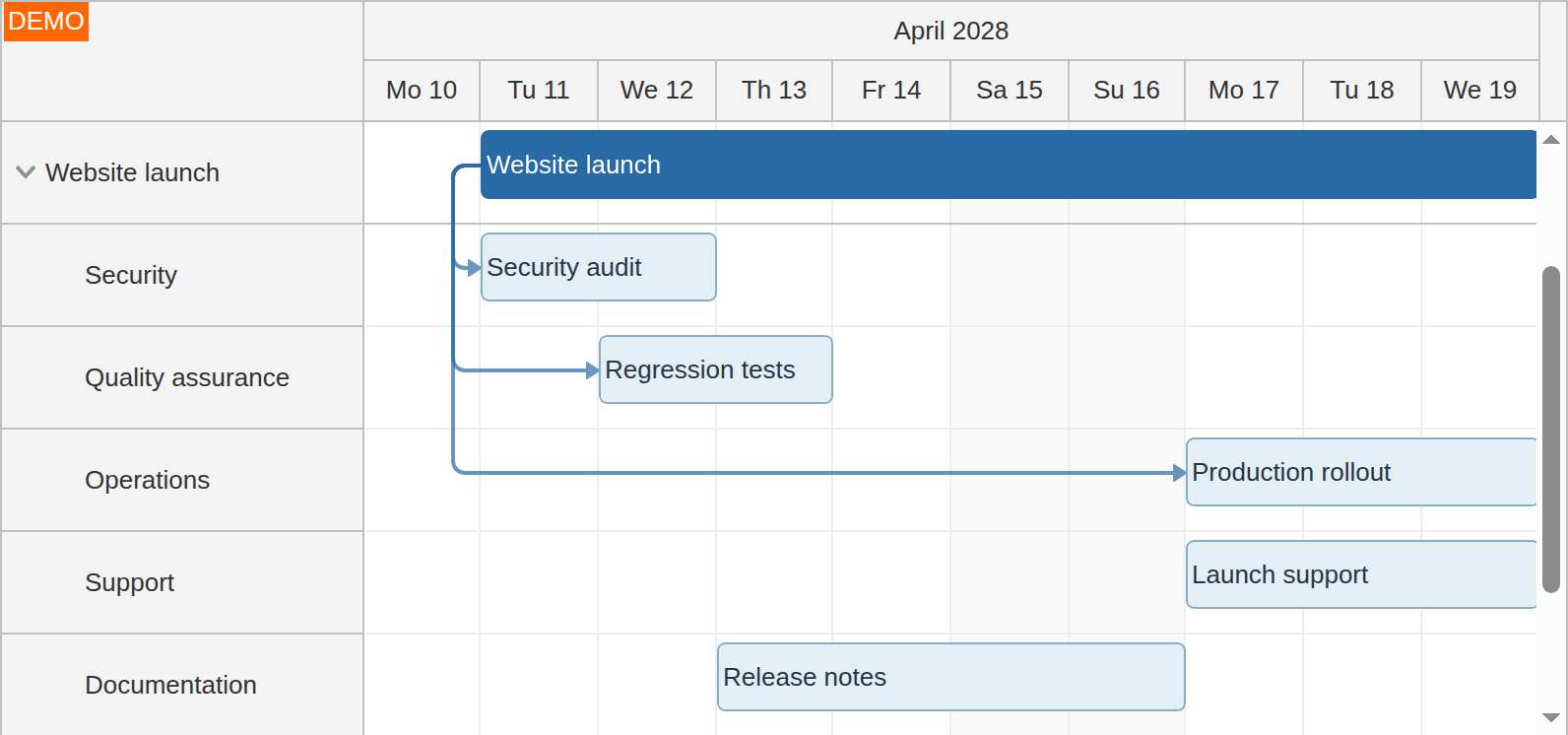
After scrolling past earlier tasks, the Website launch parent and its links stay visible above the remaining team rows.
Enable Links for Sticky Parent Events
Enable linkStickyParentsEnabled together with stickyParents. Link support for sticky parent events is disabled by default.
The links follow the displayed parent events as the resource tree scrolls. Define the links using the IDs of the parent and child events, as described in Link Loading.
To connect a sticky parent event with an event in a frozen row, also enable linkCrossGridEnabled.
See also Event Links and Sticky Parents.
The "Auto" default of scrollDelayCrossGridLinks follows scrolling once per animation frame. Sticky-parent link projections are not included in image export.
These excerpts configure an existing DayPilot Pro component. Keep its current timeline, resources and events.
JavaScript
const dp = new DayPilot.Scheduler("dp", {
  treeEnabled: true,
  stickyParents: true,
  linkStickyParentsEnabled: true
});
dp.init();
Angular
<daypilot-scheduler [config]="config"></daypilot-scheduler>config: DayPilot.SchedulerConfig = {
treeEnabled: true,
stickyParents: true,
linkStickyParentsEnabled: true
};React
<DayPilotScheduler
  treeEnabled={true}
  stickyParents={true}
  linkStickyParentsEnabled={true}
/>
Vue
<DayPilotScheduler
  :treeEnabled='true'
  :stickyParents='true'
  :linkStickyParentsEnabled='true'
/>
Availability
Availability of this feature in DayPilot editions:
| Product | Lite | Pro |
|---|---|---|
| DayPilot for JavaScript | ||
| DayPilot for ASP.NET WebForms | ||
| DayPilot for ASP.NET MVC | ||
| DayPilot for Java |