 DayPilot
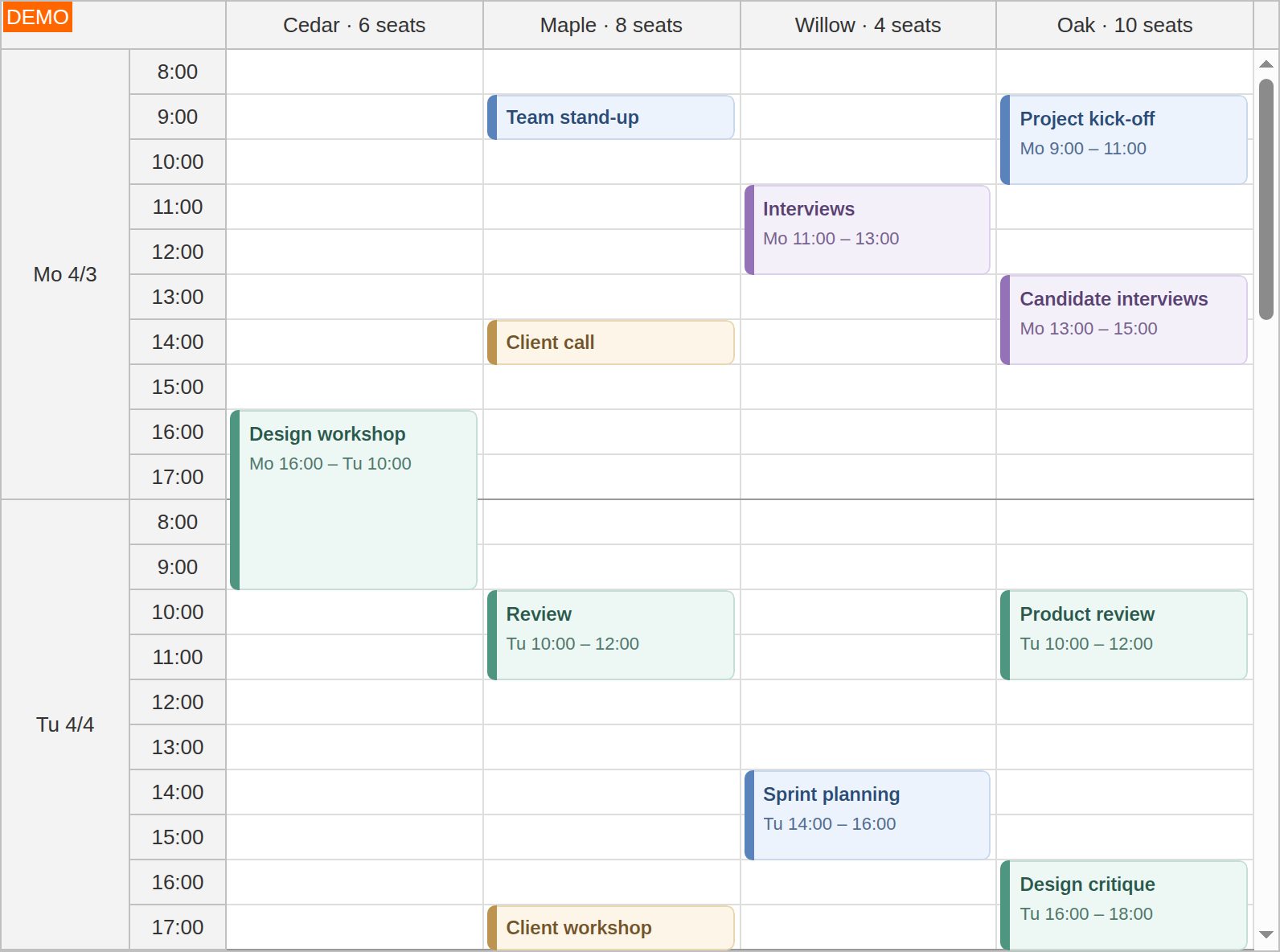
A resource calendar can place one working day directly after the previous day by removing nights and weekends from its vertical axis. Use this for room bookings, staff assignments or plans where non-working intervals would leave long gaps.
These features are available in DayPilot Pro for JavaScript, including Angular, React and Vue, from 2026.4.7150. The examples configure an existing Calendar; retain its events and other application settings.
Hide Non-Business Hours
Use an Hour, Minute or suitable CellDuration scale, define businessBeginsHour and businessEndsHour, and set showNonBusiness to false. Set businessWeekends to false to omit Saturdays and Sundays. The business settings classify time; hiding it is a separate choice.
JavaScript
const calendar = new DayPilot.Calendar("dp", {
  startDate: "2028-04-03",
  viewType: "Resources",
  days: 7,
  columns: [{id: "A", name: "Cedar room"}],
  scale: "Hour",
  businessBeginsHour: 8,
  businessEndsHour: 18,
  businessWeekends: false,
  showNonBusiness: false,
  eventMoveSkipNonBusiness: true
});
calendar.init();
Angular
Add the configuration to an existing Calendar component.
<daypilot-calendar [config]="config"></daypilot-calendar>import {DayPilot} from "daypilot-pro-angular";
config: DayPilot.CalendarConfig = {
startDate: "2028-04-03",
viewType: "Resources",
days: 7,
columns: [{id: "A", name: "Cedar room"}],
scale: "Hour",
businessBeginsHour: 8,
businessEndsHour: 18,
businessWeekends: false,
showNonBusiness: false,
eventMoveSkipNonBusiness: true
};React
import {DayPilot, DayPilotCalendar} from "daypilot-pro-react";

<DayPilotCalendar
  startDate="2028-04-03"
  viewType="Resources"
  days={7}
  columns={[{id: "A", name: "Cedar room"}]}
  scale="Hour"
  businessBeginsHour={8}
  businessEndsHour={18}
  businessWeekends={false}
  showNonBusiness={false}
  eventMoveSkipNonBusiness={true}
/>
Vue
<script setup lang="ts">
import {DayPilot, DayPilotCalendar} from "daypilot-pro-vue";
const columns: NonNullable<DayPilot.CalendarConfig["columns"]> = [{id: "A", name: "Cedar room"}];
</script>

<template>
  <DayPilotCalendar
    startDate="2028-04-03"
    viewType="Resources"
    :days="7"
    :columns="columns"
    scale="Hour"
    :businessBeginsHour="8"
    :businessEndsHour="18"
    :businessWeekends="false"
    :showNonBusiness="false"
    :eventMoveSkipNonBusiness="true"
  />
</template>
For the day/hour label columns in this example, see Grouped Time Headers.
Hide Whole Weekend Rows
For a resource plan with one row per date, use a day scale:
scale: "Day",
showNonBusiness: false,
businessWeekends: false
This removes weekend rows while retaining whole weekdays. It is different from viewType: "WorkWeek", which removes weekend date columns in a week view.
Restrict Day Cells to Working Hours
To make a retained day cell represent 08:00–18:00 instead of midnight-to-midnight, enable showNonBusinessForceHours. Use an increasing, same-day hour range. Each retained date still occupies one cell:
scale: "Day",
businessBeginsHour: 8,
businessEndsHour: 18,
showNonBusiness: false,
showNonBusinessForceHours: true
Force-hours adjustment also applies when showNonBusiness is true; weekend filtering is controlled separately.
Choose Duration when Moving
By default, moving preserves elapsed duration. Set eventMoveSkipNonBusiness to true to preserve business-time duration. A booking from Monday 16:00 to Tuesday 10:00 contains four business hours in an 8–18 schedule. Moving it changes the elapsed span as needed to keep those four hours.
This behavior is independent of whether non-business time is displayed. Set moveSkipNonBusinessDisabled: true in an individual event's data to preserve elapsed duration for that event.
const booking = {
  id: "maintenance", resource: "A", text: "Maintenance",
  start: "2028-04-03T16:00:00", end: "2028-04-04T10:00:00",
  moveSkipNonBusinessDisabled: true
};
Custom Work Calendars
Use onIncludeTimeCell for additional gaps such as lunch or irregular sessions. That handler takes precedence over automatic filtering; apply all desired rules in it. For a fully explicit timeline, see Nonlinear Timeline.
onBeforeCellRender can customize business flags for working-time moving and cell appearance, but it cannot remove shared time intervals from the axis. Hidden intervals do not delete events; events entirely inside hidden time have no visible height.
Demos
- Hiding Weekends: a monthly resource plan with whole-day rows.
- Hiding Non-Business Hours: multi-day room bookings with day/hour headers and selectable duration behavior.
Availability
Availability of this feature in DayPilot editions:
| Product | Lite | Pro |
|---|---|---|
| DayPilot for JavaScript | ||
| DayPilot for ASP.NET WebForms | ||
| DayPilot for ASP.NET MVC | ||
| DayPilot for Java |