 DayPilot
DayPilot Angular Scheduler displays a horizontal timeline with resources arranged as rows. Each event has a start, an end, and a resource assignment, so its position shows both when it takes place and which row it belongs to. Users can move events between times and resources, resize their duration, and select empty time slots. Rendering hooks and editing callbacks let your Angular application add details, actions, and scheduling rules.
The component is available in DayPilot Lite, the open-source edition under the Apache License 2.0, and DayPilot Pro, the commercial edition with additional planning features. Both include Angular components, TypeScript definitions, and bindings for options and scheduling data.
Try the Lite demo · Try the Pro demo · Configure a Scheduler in UI Builder
Angular Scheduler Features
DayPilot Lite and Pro
A timeline for multiple resources. Display bookings or tasks on a shared time axis, with a separate row for each resource. Choose the time scale and combine time header rows to show dates and time periods. Change the visible date range using buttons or an Angular date picker.
Drag-and-drop scheduling. Let users select a time range, move an event to another time or resource, and resize it to change its duration. Handle the callbacks in Angular to open your editor, update application state, and save the change. The Scheduler supports mouse and touch interaction.
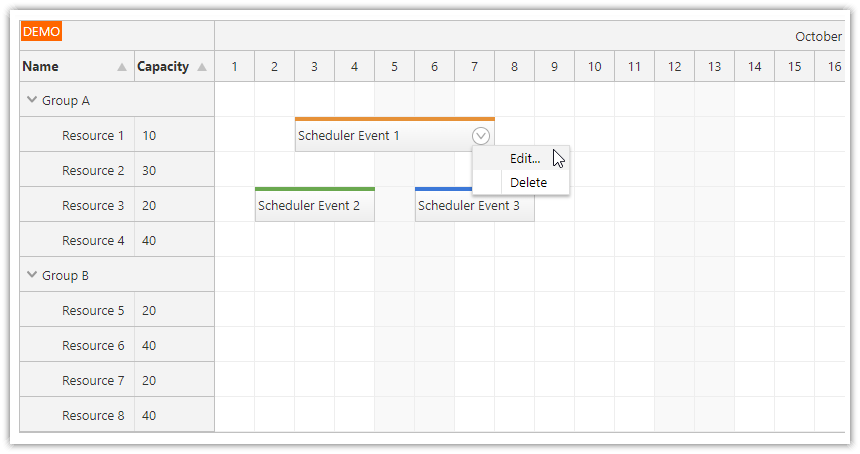
Event actions and appearance. Show event colors, labels, and action icons, add an event context menu, and customize cells and row headers. Use CSS themes to match the Scheduler to your application.
Working time and availability. Highlight business hours, weekends, holidays, or unavailable periods. The holiday tutorial below shows how to apply different holiday calendars to individual resources.
Progressive rendering. The Scheduler renders row headers and events as users scroll, keeping the displayed elements focused on the viewport. This reduces rendering work; the application still decides which data to load into the browser.
Additional DayPilot Pro Features
Resource hierarchies and planning detail. Organize resources into an expandable tree, display additional row header columns, and keep selected rows fixed at the top or bottom. Use these views for grouped teams, room categories, or summary rows.
Rules during drag and drop. Check a proposed position while the user is moving or resizing an event, reject a disallowed change, and show an explanation. Moving customization and validation callbacks let you apply your own resource, time, and capacity rules.
Custom timelines and larger schedules. Build a custom timeline, hide non-business periods, or use infinite scrolling to navigate through dates. With dynamic event loading, your application can fetch data for the viewport during scrolling instead of loading the entire schedule at once.
Related tasks and work waiting to be scheduled. Connect events using dependency links, display event phases, and combine Scheduler with the Queue component for unscheduled work. Links visualize relationships; your application controls any resulting date changes or scheduling rules.
Planned versus actual schedules. Display event versions alongside the current event. You can keep the original booking or planned task position visible when the actual schedule changes.
Export. Export the schedule as an image, create a PDF, or save an Excel spreadsheet. The export guides explain the required libraries and how to handle custom event or header content.
Keyboard navigation. Enable keyboard support so users can navigate cells and events and select time ranges using the keyboard. Configure the focus target and accessible labels to fit the surrounding application.
See the feature matrix for a full edition comparison. If you need a daily or weekly view with time running vertically and resources displayed as columns, see the Angular Calendar.
Angular Scheduler Examples
Global and Resource-Specific Holidays (Lite)
Cell customization can show information that varies by both date and resource. The holiday example colors a global holiday across the grid and adds a matching bar to the time header. It also reads holiday ranges stored on individual resources, so one row can show time off while neighboring rows retain their normal background.
The application supplies the holiday dates and colors. The cell-rendering callback checks which ranges overlap each cell; the header callback adds the global marker. This example changes appearance and leaves drag-and-drop editing enabled. To enforce unavailable periods as well, see the separate disabled-slot example for Pro. Try the holiday demo.
A Summary Chart That Stays Above the Resources (Pro)
Frozen rows can display calculated values as well as ordinary scheduling data. The resource-utilization example places two rows above the resource tree: Workload shows a percentage for each time slot, and Chart draws a bar for the same value. Both rows remain visible when the resource grid scrolls.
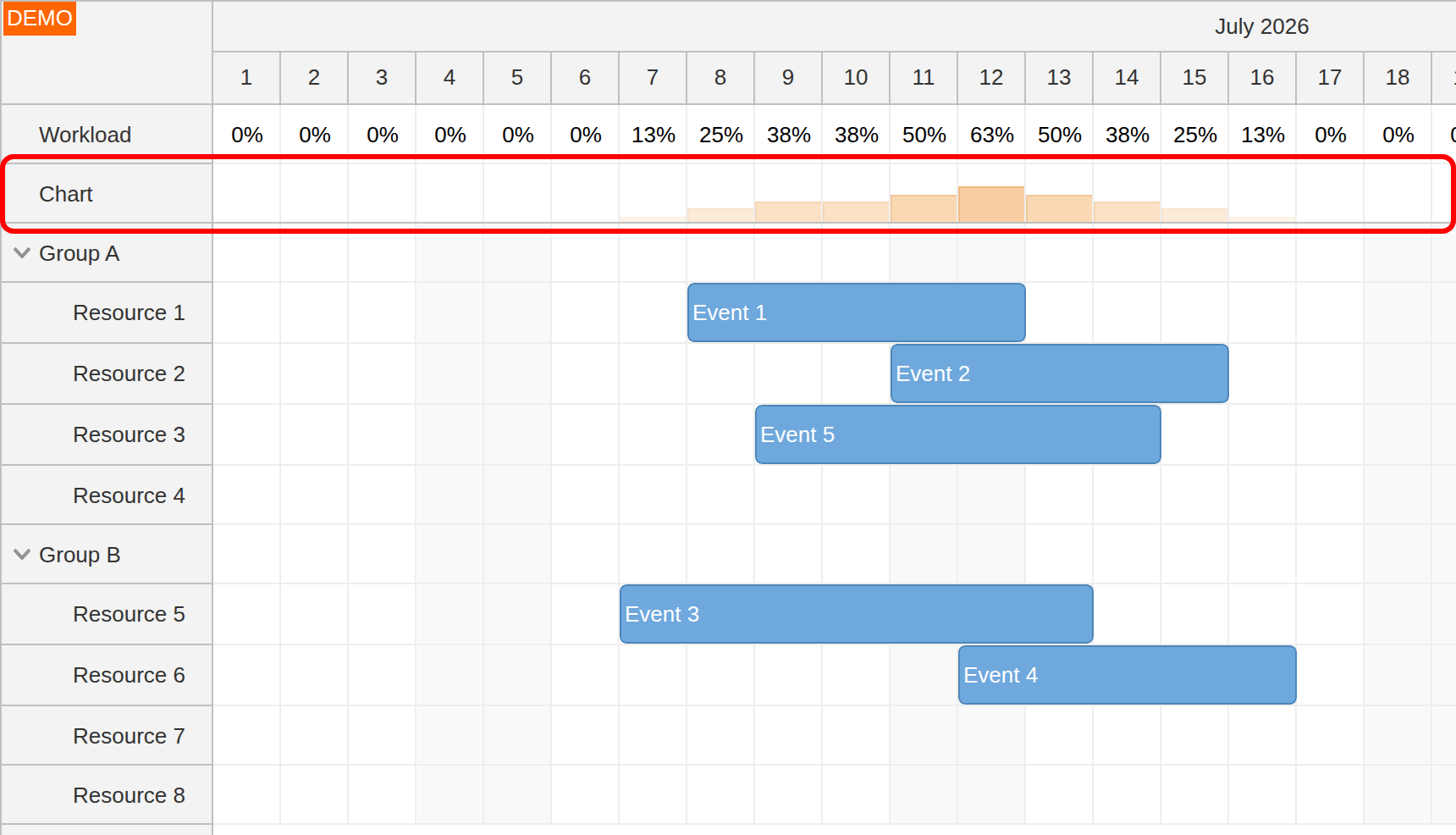
The Workload and Chart rows summarize the time slots below them; their cells are disabled for event creation.
The sample calculates the percentage by dividing the number of events overlapping a slot by the number of leaf resources. Five events across eight resources produce 63% after rounding. This is an application-defined calculation: overlapping events on the same resource are counted separately. Use distinct resource IDs or scheduled durations instead when your calculation needs occupied resources or booked hours.
The Scheduler supplies the frozen rows, event-range lookup, and cell drawing. The example enables automatic cell updates so its percentages and bars are recalculated after event changes. Try moving an event in the utilization demo to see the summary change.
Angular Scheduler Demos and Tutorials
The tutorials below include downloadable Angular projects. Start with the edition you plan to use, explore the live demos, and then choose the scheduling features or backend workflow you need.
Start with a Working Scheduler
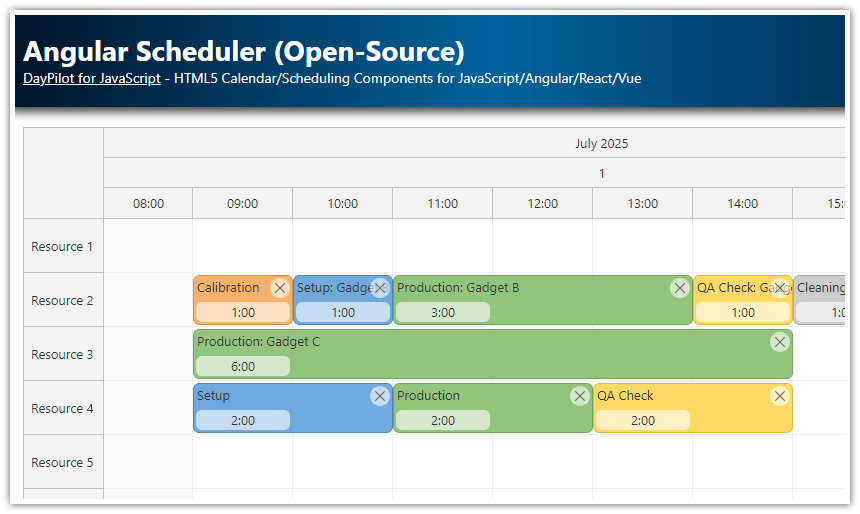
Angular Scheduler with Horizontal Timeline · Live demo (Lite)
Start with the open-source Scheduler: resources, event editing, timeline settings, custom event content, and themes.Angular Scheduler Quick Start · Live demo (Pro)
Explore a Pro Scheduler in a standalone Angular project and use it as the starting point for your own configuration.Angular Timesheet Quick Start · Live demo (Pro)
Use the Scheduler in timesheet mode, with days as rows and time of day on the horizontal axis.
Event Editing and Appearance
CSS Themes · Live demo (Lite)
Compare and switch Scheduler themes without changing the scheduling data.Highlighting Holidays · Live demo (Lite)
Highlight global and resource-specific holidays in grid cells and time headers.Read-Only and Edit Mode Switching · Live demo (Lite)
Switch between browsing and editing by changing the enabled event interactions.Undo/Redo · Live demo (Lite)
Build an application-managed action history around event creation, movement, resizing, and deletion.Event Cut, Copy and Paste (Pro)
Implement clipboard actions for Scheduler events using application code and event callbacks.Event Filtering (Pro)
Combine text, category, and duration criteria to filter the displayed events.Event Phases (Pro)
Display the stages of a task as separate colored sections within one event.Event Links · Live demo (Pro)
Connect related events and customize the links between them.Drag-and-Drop Task Queue (Pro)
Display ordered unscheduled tasks using the Angular Queue component, then drag them to a resource and time.
Resources, Navigation, and Layout
Row Filtering · Live demo (Pro)
Filter resources by name or by the events they contain.Row Searching · Live demo (Pro)
Find a matching resource, scroll to it, and highlight the result.Resource Management · Live demo (Pro)
Create, edit, delete, and reorder resources from the scheduling interface.Row Header Actions (Pro)
Add clickable icons, hyperlinks, and context-menu buttons to resource headers.Integration with a Date Picker (Pro)
Connect Navigator to the Scheduler so users can choose the displayed date.Next/Previous Buttons · Live demo (Pro)
Add buttons for moving between months and returning to today.Zoom (Pro)
Define zoom levels and switch between them using buttons or a range control.Timeline Customization · Live demo (Pro)
Build a manual timeline with 30-second cells and choose the day using a date picker.How to Disable Time Slots · Live demo (Pro)
Mark resource-specific periods as unavailable and prevent drag-and-drop actions from using them.Full Screen Layout · Live demo (Pro)
Make the Scheduler fill the available window, with a collapsible navigation sidebar.
Utilization, Performance, and Export
Resource Utilization Chart · Live demo (Pro)
Calculate workload percentages and display a bar chart in frozen summary rows.Freeze Headers during Excel Export · Live demo (Pro)
Export the schedule to XLSX with frozen header panes so labels remain visible while scrolling the spreadsheet.Dynamic Loading of Large Data Sets (Pro)
Fetch events from a PHP backend as users scroll. This recipe uses an older Angular project structure.Infinite Scrolling · Live demo (Pro)
Shift the timeline as users scroll horizontally and load events for the viewport. The standalone Angular example uses a simulated asynchronous data service and preloads a margin around the visible range.Loading 400,000 Events (Pro)
Explore a large, statically loaded sample dataset and the distinction between loading and rendering work.Lazy Loading with Code Splitting · Live demo (Lite)
Load the Scheduler feature when users open its Angular route to reduce initial application loading.
Custom Angular Content
These focused recipes demonstrate component creation and Scheduler rendering hooks. The event, row-header, and tooltip projects use older Angular scaffolding; adapt their setup to your application and retain the cleanup logic.
Create the Scheduler Dynamically (Pro)
Create the Scheduler host with ViewContainerRef.createComponent() when the application needs it.Angular Components Inside Events (Pro)
Insert custom Angular components into events and clean them up when the event elements are removed.Angular Components in Row Headers (Pro)
Display custom Angular controls inside resource header cells.Dynamic Tooltip (Pro)
Show event details in a Bubble, including dynamically created Angular content.
Backend Integration and Scheduling Applications
These projects show how the UI connects to server-side storage and business workflows. Use them for the application patterns, and check their Angular and backend setup instructions when adapting the source.
Angular Scheduler with PHP/MySQL (Pro)
Load resources and events through an API and save scheduling changes to a database.Angular Scheduler with Spring Boot (Pro)
Connect the Angular UI to Java REST endpoints, Hibernate, and an H2 database.Hotel Room Booking with PHP/MySQL (Pro)
Manage room reservations and room information in a complete sample application.Restaurant Table Reservations with PHP/MySQL (Pro)
Display tables, filter available seating, and manage reservations.Work Order Scheduling with PHP/MySQL (Pro)
Assign work orders from a queue to people and time slots, with resources grouped by team.Annual Leave Scheduling with ASP.NET Core (Pro)
Schedule employee leave using an ASP.NET Core API and Entity Framework persistence.
Configure an Angular Scheduler Visually

The Scheduler UI Builder lets you change the timeline, appearance, and behavior in a live preview. Select an Angular target and the edition you want to use, then download a project with your configuration. Continue editing the options in TypeScript as your application grows.
Installation
DayPilot Lite
Install @daypilot/daypilot-lite-angular from npm:
npm install @daypilot/daypilot-lite-angularDayPilot Pro
At npm.daypilot.org, select Angular and copy the installation command for daypilot-pro-angular. Licensed customers can obtain their package URL in the customer area.
The examples below use DayPilot Lite and standalone Angular components. For Pro, change the DayPilot import to daypilot-pro-angular.
Display Resources and Reservations
This component displays a month of reservations for two rooms. Each row represents a room, and each reservation occupies the dates between its start and end.
scheduler.component.ts
import {Component} from '@angular/core';
import {DayPilot, DayPilotModule} from '@daypilot/daypilot-lite-angular';

@Component({
  selector: 'app-scheduler',
  standalone: true,
  imports: [DayPilotModule],
  template: `
    <daypilot-scheduler
      [config]="config"
      [resources]="resources"
      [events]="events">
    </daypilot-scheduler>
  `
})
export class SchedulerComponent {
  config: DayPilot.SchedulerConfig = {
    startDate: '2026-10-01',
    days: 31,
    scale: 'Day',
    timeHeaders: [{groupBy: 'Month'}, {groupBy: 'Day', format: 'd'}]
  };

  resources: DayPilot.ResourceData[] = [
    {id: 'R1', name: 'Room 1'},
    {id: 'R2', name: 'Room 2'}
  ];

  events: DayPilot.EventData[] = [
    {id: 1, text: 'Reservation A', resource: 'R1',
      start: '2026-10-05', end: '2026-10-08'},
    {id: 2, text: 'Reservation B', resource: 'R2',
      start: '2026-10-20', end: '2026-10-23'}
  ];
}
Import SchedulerComponent in your parent component and add <app-scheduler></app-scheduler> to its template.
The three inputs describe the schedule:
[config]supplies Scheduler options and callbacks. Here,startDateanddaysdefine the displayed month,scale: 'Day'creates one cell per day, andtimeHeaderslabels the month and individual days. See time scale and time headers.[resources]supplies the rows. Each resource has anidand a displayedname. An event'sresourcematches that row'sid, so reservation A appears in Room 1.[events]supplies the reservations. Each has a uniqueid, displaytext, dates, and resource. The end is exclusive: reservation A occupies October 5, 6, and 7 and ends at the start of October 8. See the event data reference.
The Angular wrapper creates the Scheduler and applies changes to these inputs. Scheduler properties and callbacks from the JavaScript API go in config; keep the row and event collections in their dedicated inputs.
Load Data and Navigate between Months
To display reservations from a backend, replace the sample arrays with the returned data. This example loads the initial month and adds previous/next buttons. Changing months updates both startDate and days, because months have different lengths, then requests the reservations for the new range.
The example endpoint, /api/schedule, belongs to your application. It receives start and exclusive end query parameters and returns a JSON object with resources and events arrays in the format above. Return events that overlap the requested range, including reservations that start before it.
import {ChangeDetectorRef, Component, inject, OnInit} from '@angular/core';
import {DayPilot, DayPilotModule} from '@daypilot/daypilot-lite-angular';

@Component({
  selector: 'app-scheduler',
  standalone: true,
  imports: [DayPilotModule],
  template: `
    <button (click)="changeMonth(-1)">Previous month</button>
    <button (click)="changeMonth(1)">Next month</button>
    <daypilot-scheduler
      [config]="config"
      [resources]="resources"
      [events]="events">
    </daypilot-scheduler>
  `
})
export class SchedulerComponent implements OnInit {
  config: DayPilot.SchedulerConfig = {
    startDate: '2026-10-01',
    days: 31,
    scale: 'Day',
    timeHeaders: [{groupBy: 'Month'}, {groupBy: 'Day', format: 'd'}]
  };

  resources: DayPilot.ResourceData[] = [];
  events: DayPilot.EventData[] = [];
  private changes = inject(ChangeDetectorRef);
  private loadRequest = 0;

  ngOnInit() {
    this.loadData();
  }

  changeMonth(offset: number) {
    const start = new DayPilot.Date(this.config.startDate!).addMonths(offset);
    this.config = {...this.config, startDate: start, days: start.daysInMonth()};
    this.loadData();
  }

  async loadData() {
    const request = ++this.loadRequest;
    const start = new DayPilot.Date(this.config.startDate!);
    const end = start.addDays(this.config.days!);

    try {
      const {data} = await DayPilot.Http.get(`/api/schedule?start=${start}&end=${end}`);
      if (request !== this.loadRequest) { return; }
      this.resources = data.resources;
      this.events = data.events;
      this.changes.markForCheck();
    } catch {
      if (request === this.loadRequest) {
        await DayPilot.Modal.alert('Could not load reservations.');
      }
    }
  }
}
DayPilot.Http.get() parses the JSON response. Assigning the arrays supplies the new schedule; markForCheck() notifies Angular after the asynchronous request, including in zoneless applications. The request counter prevents an older response from replacing the data if users change months quickly.
For the individual data formats, see resource loading and event loading. The PHP/MySQL and Spring Boot tutorials show complete backend applications. To choose dates from a calendar, see integration with an Angular date picker.
Create a Reservation by Selecting Dates
Users can drag across empty cells to select dates for a room. Handle time range selection in config: ask for a name, then add a reservation using the selected dates and resource. This replaces the configuration in the first example; the template and sample collections stay the same.
config: DayPilot.SchedulerConfig = {
  startDate: '2026-10-01',
  days: 31,
  scale: 'Day',
  timeHeaders: [{groupBy: 'Month'}, {groupBy: 'Day', format: 'd'}],
  onTimeRangeSelected: async args => {
    const modal = await DayPilot.Modal.prompt('Reservation name:', 'New reservation');
    args.control.clearSelection();
    if (modal.canceled) { return; }

    args.control.events.add({
      id: DayPilot.guid(),
      text: modal.result,
      start: args.start,
      end: args.end,
      resource: args.resource
    });
  }
};
DayPilot.Modal.prompt() returns the entered name or a cancellation result. args.control is the Scheduler that raised the callback: clearSelection() removes the selection highlight, and events.add() displays the new reservation. This example creates it in memory. With a backend, save the reservation and use the server's returned ID.
Move, Resize and Save Reservations
Moving a reservation changes its dates or room; resizing changes its duration. Both work in the first example without additional configuration. Their default Update handling updates the display and modifies the supplied event object.
To persist these edits, add onEventMoved and onEventResized to config. Both receive the updated event and can use the same saving method. Here are the configuration and method together; retain the template and collections from the first example.
export class SchedulerComponent {
  // Resource and event arrays as in the first example.

  config: DayPilot.SchedulerConfig = {
    startDate: '2026-10-01',
    days: 31,
    scale: 'Day',
    timeHeaders: [{groupBy: 'Month'}, {groupBy: 'Day', format: 'd'}],
    onEventMoved: args => this.saveEvent(args.e.data),
    onEventResized: args => this.saveEvent(args.e.data)
  };

  async saveEvent(event: DayPilot.EventData) {
    try {
      await DayPilot.Http.put(`/api/events/${event.id}`, event);
    } catch {
      await DayPilot.Modal.alert('The reservation could not be saved.');
    }
  }
}
/api/events/{id} represents your backend endpoint accepting the updated JSON record. These callbacks run after the local edit. If saving fails, this example reports the failure and leaves the local edit visible; your application can offer a retry or restore the saved reservation.
For an event details editor opened by a click or context menu, see the Angular Scheduler quick start. To control which interactions are available, see read-only and edit mode switching.
Call the Scheduler API
Use the Scheduler API for actions such as scrolling to a reservation. The Angular component's control property exposes the underlying DayPilot.Scheduler instance.
This complete example adds a button to the room schedule. @ViewChild gives the host component access to the Scheduler; the button finds reservation B and scrolls to its current start date, including after it has been moved.
import {Component, ViewChild} from '@angular/core';
import {
  DayPilot,
  DayPilotModule,
  DayPilotSchedulerComponent
} from '@daypilot/daypilot-lite-angular';

@Component({
  selector: 'app-scheduler',
  standalone: true,
  imports: [DayPilotModule],
  template: `
    <button (click)="showReservation()">Show reservation B</button>
    <daypilot-scheduler #scheduler
      [config]="config"
      [resources]="resources"
      [events]="events">
    </daypilot-scheduler>
  `
})
export class SchedulerComponent {
  @ViewChild('scheduler') scheduler!: DayPilotSchedulerComponent;

  config: DayPilot.SchedulerConfig = {
    startDate: '2026-10-01',
    days: 31,
    scale: 'Day',
    timeHeaders: [{groupBy: 'Month'}, {groupBy: 'Day', format: 'd'}]
  };

  resources: DayPilot.ResourceData[] = [
    {id: 'R1', name: 'Room 1'},
    {id: 'R2', name: 'Room 2'}
  ];

  events: DayPilot.EventData[] = [
    {id: 1, text: 'Reservation A', resource: 'R1',
      start: '2026-10-05', end: '2026-10-08'},
    {id: 2, text: 'Reservation B', resource: 'R2',
      start: '2026-10-20', end: '2026-10-23'}
  ];

  showReservation() {
    const scheduler = this.scheduler.control;
    const reservation = scheduler.events.find(2);
    if (reservation) {
      scheduler.scrollTo(reservation.start());
    }
  }
}
The button runs after the Scheduler has been created. For an API call during initialization, use ngAfterViewInit(). See scrollTo() and the other Scheduler methods. Within a Scheduler callback, use args.control as in the reservation-creation example.
Use Angular Signals
The same inputs also accept signals. Pass each signal directly, for example [events]="events"; the wrapper observes its changes. This version of the initial data-loading example uses set() to supply the response, without a separate change-detection notification:
import {Component, OnInit, signal} from '@angular/core';
import {DayPilot, DayPilotModule} from '@daypilot/daypilot-lite-angular';

@Component({
  selector: 'app-scheduler',
  standalone: true,
  imports: [DayPilotModule],
  template: `
    <daypilot-scheduler
      [config]="config"
      [resources]="resources"
      [events]="events">
    </daypilot-scheduler>
  `
})
export class SchedulerComponent implements OnInit {
  config = signal<DayPilot.SchedulerConfig>({
    startDate: '2026-10-01',
    days: 31,
    scale: 'Day',
    timeHeaders: [{groupBy: 'Month'}, {groupBy: 'Day', format: 'd'}]
  });

  resources = signal<DayPilot.ResourceData[]>([]);
  events = signal<DayPilot.EventData[]>([]);

  async ngOnInit() {
    const config = this.config();
    const start = new DayPilot.Date(config.startDate!);
    const end = start.addDays(config.days!);

    try {
      const {data} = await DayPilot.Http.get(`/api/schedule?start=${start}&end=${end}`);
      this.resources.set(data.resources);
      this.events.set(data.events);
    } catch {
      await DayPilot.Modal.alert('Could not load reservations.');
    }
  }
}
Use config.update() to replace options, and events.set() or events.update() when your application replaces the event collection. Passing events() instead supplies the current array through the ordinary-input path. Automatic drag-and-drop editing still modifies the event data; it does not itself notify other Angular consumers of the signal.
Configuration and event signal inputs are supported since DayPilot Pro 2025.1.6377 and DayPilot Lite Angular 5.0.0. The dedicated [resources] input is supported since DayPilot Pro 2026.2.6936 and Lite Angular 5.10.0; Pro also provides a [links] input for dependency links.
Larger Schedules
For larger applications, see Angular Scheduler performance. Pro dynamic event loading fetches events during scrolling, while dynamic resource-tree loading fetches child rows when a group is expanded.
Customize Content with Angular Templates
Use Angular markup in events, cells, row headers, time headers and the upper-left corner. Bind application data or place an Angular child component inside the template.
Angular templates are available in DayPilot Lite since version 2026.4.895 and DayPilot Pro since version 2026.4.7099.
Import DayPilotModule from @daypilot/daypilot-lite-angular in the containing Angular component. For Pro, use daypilot-pro-angular. The module exports the component and the daypilotTemplate directive. Place each named ng-template directly inside <daypilot-scheduler>. Templates support Angular bindings, event handlers and child components; import any child components or additional directives in the containing component.
Lite and Pro Example
import {Component} from '@angular/core';
import {DayPilot, DayPilotModule} from '@daypilot/daypilot-lite-angular';

@Component({
  selector: 'app-scheduler-templates',
  standalone: true,
  imports: [DayPilotModule],
  template: `
    <daypilot-scheduler [config]="config" [events]="events">
      <ng-template daypilotTemplate="event"
                   daypilotTemplateFor="scheduler" let-event="event">
        <strong>{{ event.text() }}</strong>
      </ng-template>
      <ng-template daypilotTemplate="cell"
                   daypilotTemplateFor="scheduler" let-cell="cell">
        <small>{{ cell.start.toString('d') }}</small>
      </ng-template>
      <ng-template daypilotTemplate="rowHeader"
                   daypilotTemplateFor="scheduler" let-row="row">
        <strong>{{ row.name }}</strong>
      </ng-template>
      <ng-template daypilotTemplate="timeHeader"
                   daypilotTemplateFor="scheduler" let-header="header">
        <strong>{{ header.start.toString('MMM d') }}</strong>
      </ng-template>
      <ng-template daypilotTemplate="corner" daypilotTemplateFor="scheduler">
        Resources
      </ng-template>
    </daypilot-scheduler>
  `
})
export class SchedulerTemplatesComponent {
  config: DayPilot.SchedulerConfig = {
    startDate: '2028-10-01',
    days: 7,
    scale: 'Day',
    timeHeaders: [{groupBy: 'Day'}],
    resources: [{id: 'R1', name: 'Meeting room'}]
  };

  events: DayPilot.EventData[] = [
    {id: 1, text: 'Planning', resource: 'R1',
      start: '2028-10-02', end: '2028-10-04'}
  ];
}
Keep only the templates you need. Omitted templates retain the normal component rendering.
Lite Template Contexts
event:let-event="event"exposes aDayPilot.Event. Readevent.dataor callevent.text().cell:let-cell="cell"exposes aDayPilot.Cell, includingstart,endandrow.rowHeader:let-row="row"exposes theDayPilot.Row.timeHeader:let-header="header"exposesstart,endand the numeric headerlevel.corner: its context is empty; use properties or methods of your containing Angular component.
Additional Pro Context
Pro supports additional row-header columns. Its rowHeader context also exposes the zero-based column index x; use it to select the content for each column:
<ng-template daypilotTemplate="rowHeader" daypilotTemplateFor="scheduler"
             let-row="row" let-x="x">
  <span [attr.title]="'Column ' + x">{{ row.name }}</span>
</ng-template>
Type Checking and Rendering
The optional daypilotTemplateFor="scheduler" qualifier selects the component-specific context. Enable Angular's strictTemplates option to check its fields. Use named bindings such as let-cell="cell"; these templates do not provide an implicit value. If specified, the qualifier must match the enclosing DayPilot component.
Define at most one template for each supported name. A template takes precedence over its DOM-add callback; omit the template to use that callback instead. Existing DOM-removal callbacks still run. The wrapper creates and disposes Angular views as their rendered elements are added and removed.
Keep values that must survive navigation or a redraw in application state. A child component can use its normal Angular lifecycle hooks to release resources.
Availability
Availability of this feature in DayPilot editions:
| Product | Lite | Pro |
|---|---|---|
| DayPilot for JavaScript | ||
| DayPilot for ASP.NET WebForms | ||
| DayPilot for ASP.NET MVC | ||
| DayPilot for Java |